Contents
- Index
My Account
The "My Account" link is located in the upper left hand corner of your desktop, under your name when you are logged in to your account.
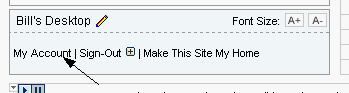
Under My Account, you'll find the following features:
Personal Information
How do I view and edit my personal information?
Go to My Account. Click the arrow next to Edit Personal Information to view your personal information, such as your email address, zip code, and username. Click the Edit Personal Information button to make changes. You can update your name, email address, company information, zip code, password security challenge, etc. Be sure to click the Update Info button to save your changes.
Feature Preferences
How do I set links to open in a new window (or not)?
By default, all links will open in a new browser window, while leaving your desktop in the original window. You can change the setting to open links in the same browser window (or later change it back). To do so, go to My Account. Click the arrow next to Feature Preferences to see your current settings. Click the Edit Feature Preferences button to make changes. Be sure to click the Update Info button to save your changes.
How can I turn off my news ticker?
If you are on a slow internet connection, you may choose to turn off your scrolling news ticker. Links to news categories will appear in it's place, as well as a link to Activate Ticker that will allow you to turn your ticker back on. To do so, go to My Account. Click the arrow next to Feature Preferences to see your current settings. Click the Edit Feature Preferences button to make changes. Be sure to click the Update Info button to save your changes.
You can also turn off the ticker from your homepage by clicking the arrow to the left of the ticker. This method will not display the static news links.
Content Layout
This page allows you to choose from a list of Specialty Portlets and Themes to appear on your personal desktop (when available). Please see below for more information about themes and portlets and how to select them on your site.
What is a Portlet?
A Portlet is a collection of widgets, organized into one of the "tabs" found in the main body of your homepage. For instance, and portlet may be called "Daily News." Within the Daily News portlet there would be a number of widgets, including "US News," "Business News" and "International News" links widgets. Portlets may also contain news feeds, financial information, and more. There is a row of tabs near the cetner of the page - click any of those tabs to display a different porlet.
What is a Theme? (Themes may not be available on your site.)
A Theme is a grouping of related Portlets. If multiple themes are available on your site, you may be able to select different themes (swapping out the portlets in the main body of the site) using links in your left hand menu. You can also switch to a different theme from the My Account page (see below for more information).
What is a Specialty Portlet? (Specialty Portlets may not be available on your site.)
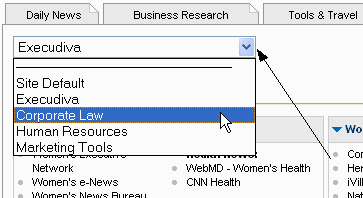 The Specialty Portlet is the portlet next to your MyLinks personal portlet, and is not a part of the main Theme. When multiple Specialy Portlets are available you will see a dropdown menu within your Specialty Portlet on the homepage, where you can select a different portlet to display in that space. You can also switch to a different Specialty Portlet from the My Account page (see below for more information).
How do I make changes to my personal content layout?
When available, you may be able to change your content layout from your homepage (themes may be selected from the menu on the left, and the Specialty Portlet can be changed within the portlet).
You can also make these changes by going to My Account. Click the arrow next to Content Layout to see your current settings. Click the Edit Content Layout button to make changes. Select a Specialty Portlet, or Theme from the provided menus. Use the binoculars to see a preview of the content before making your choice. When you have completed your changes, click the Update Your Content Layout button.
Remote Sign-Out
What is Remote Sign-Out?
There may be times when you want to sign-out of all the computers on which you are signed in. For example, you may have signed into your personal page from a public computer while travelling. If you forgot to sign-out, then anyone using that computer to visit the site would automatically be signed into your personal page. You can use "Remote Sign-Out" to sign-out of your personal page on all remote computers. You can also sign-out of all computers including this computer by using the "Complete Sign-Out" option.
Remote Sign-Out is available from your homepage by clicking the "+" next to the Sign-Out link under your name. You can also use Remote Sign-Out from the My Account page. Click the arrow next to Remote Sign-Out to see information about this feature. Click the Remote Sign-Out Options button to see your options and sign out.
Color Scheme
How do I change my desktop color scheme? (Multiple color schemes may not be available on your site.)
Go to My Account. When available, click the arrow next to Color Scheme Selection to see the color scheme you have selected. Click the Edit Color Scheme Selection button to see other options. Choose your new color scheme by clicking the corresponding Select button. Return to your desktop to see the new color scheme.
Change Password
How can I change my portal password?
You may not be able to change your password. If you do not see this option, contact your site administrator for more information.
Go to My Account. When available, click the arrow next to Change Password. Enter your new password (twice), then click the Change Password button.